# Introduction
An introduction to the Nest brand and product.
## Nest - The pro trader's app.
Nest elevates the mobile on-chain trading experience to the next level. Never miss a trade while on the go, whether it's the Memecoin Trenches or the Futures Arena, Nest offers a supperior 0 compromise trading experience.
* **Futures**
* Up to 50x Leverage
* Full Hyperliquid integration optimized for on the go trades
* **Memes**
* Fastest transaction execution on Solana using self-custodial signing & gRPC
* 0 Second live charts and trades
* Dev, Insiders & Snipers detection on all tokens
* Advanced bundling detection
* 0 Second limit order execution
* **DeFi**
* Supports 16+ chains including **Solana, Ethereum, Base, BSC Hyperliquid** and more.
* Seemless cross-chain swaps
* Interact and connect with any dApp
### Maximum security to protect your assets
✅ Fully self-custodial (your private keys are encrypted and stored on your device)
✅ Built-in simulation on all messages and transactions
✅ Passkey and biometric signing on mobile
:white\_check\_mark: Trusted by VCs and reputable brands in the space
✅ Create and manage any multisig Safe{Wallet} all within Nest
### Supported Chains
* Solana
* Ethereum
* Base
* Hyperliquid
* BNB Chain
* Polygon
* Arbitrum
* Ton
* Blast
* Scroll
* ZKSync
* Linea
* Avalanche
* Optimisum
* Gnosis
* Zora
{% hint style="info" %}
Live charts are provided by TradingView. Track prices of your favorite tokens including [BTC](https://www.tradingview.com/symbols/BTCUSD/), [ETH](https://www.tradingview.com/symbols/ETHUSD/), [SOL](https://www.tradingview.com/symbols/SOLUSD/) and more.
{% endhint %}
# About Us
# Official Links
List of official links for Nest Wallet
### You can find us at:
* **Checkout our** [**website**](https://nestwallet.xyz) 🌐
* [**Chrome Extension**](https://chrome.google.com/webstore/detail/nest-wallet/cmoakldedjfnjofgbbfenefcagmedlga)
* [**IOS App**](https://apps.apple.com/us/app/nest-wallet/id6451122334)
* [**Android App**](https://play.google.com/store/apps/details?id=xyz.nestwallet.nestwallet)
* Follow us on [**Twitter**](https://twitter.com/nestwalletxyz)
* Join our [**Telegram**](/) to vibe out and get some trading alpha
* Join [**Discord**](https://discord.gg/ByqrRvcbWq) to get instant support
* Follow us on [**LinkedIn**](https://www.linkedin.com/company/nestwallet)
If you have any question, please reach out to us at *****.*
# Safety & Security
Nest Wallet prioritizes security above all else
## Open-source
Nest Wallet's codebase is public & open-source.
In the spirit of transparency & security the Nest Wallet team has made the code for the app's frontend and key management. That way users can rest assured knowing that their keys never leave their device. GitHub:
## In-device Private key encryption
Nest Wallet is a fully self-custodial wallets. It stores your private keys and seed phrases locally on your device and encrypts them with your password & biometrics. This way even if our team is held at gun point to give up your assets we would have no way of doing that.
## Automated Audit
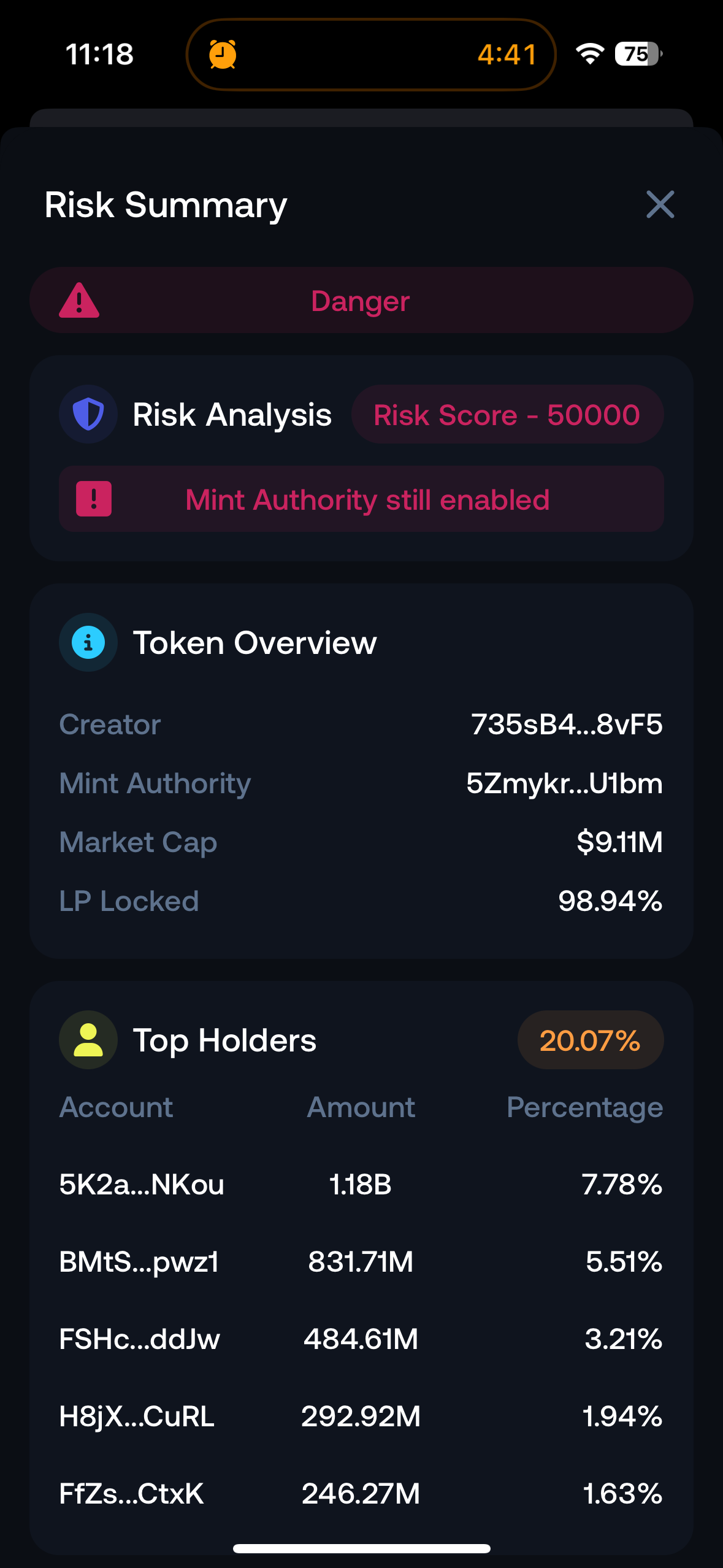
Nest Wallet automatically audits any token you wish to trade and displays a risk score. This can be helpful when trading to make sure the token's LP is locked, there is no blacklisting functionality, etc...
## Safe{Wallet} Multisig Integration
Nest Wallet is now part of the Safe{PASS} program and has previously won a [Safe](https://safe.global/) hackathon, and received a grant from them to build out native supports for Safe{Wallet} multi-sigs all within Nest.
Users are able to create, import and manage Safe{Wallets} within the app. This includes creating new proposals, approving/ rejecting proposals, simulating proposals for extra security, and of course enabling Safe{Wallets} to interact with dApps!
{% embed url="" %}
## Transaction Simulation
Worried about interacting with new protocols out of fear of getting rugged?
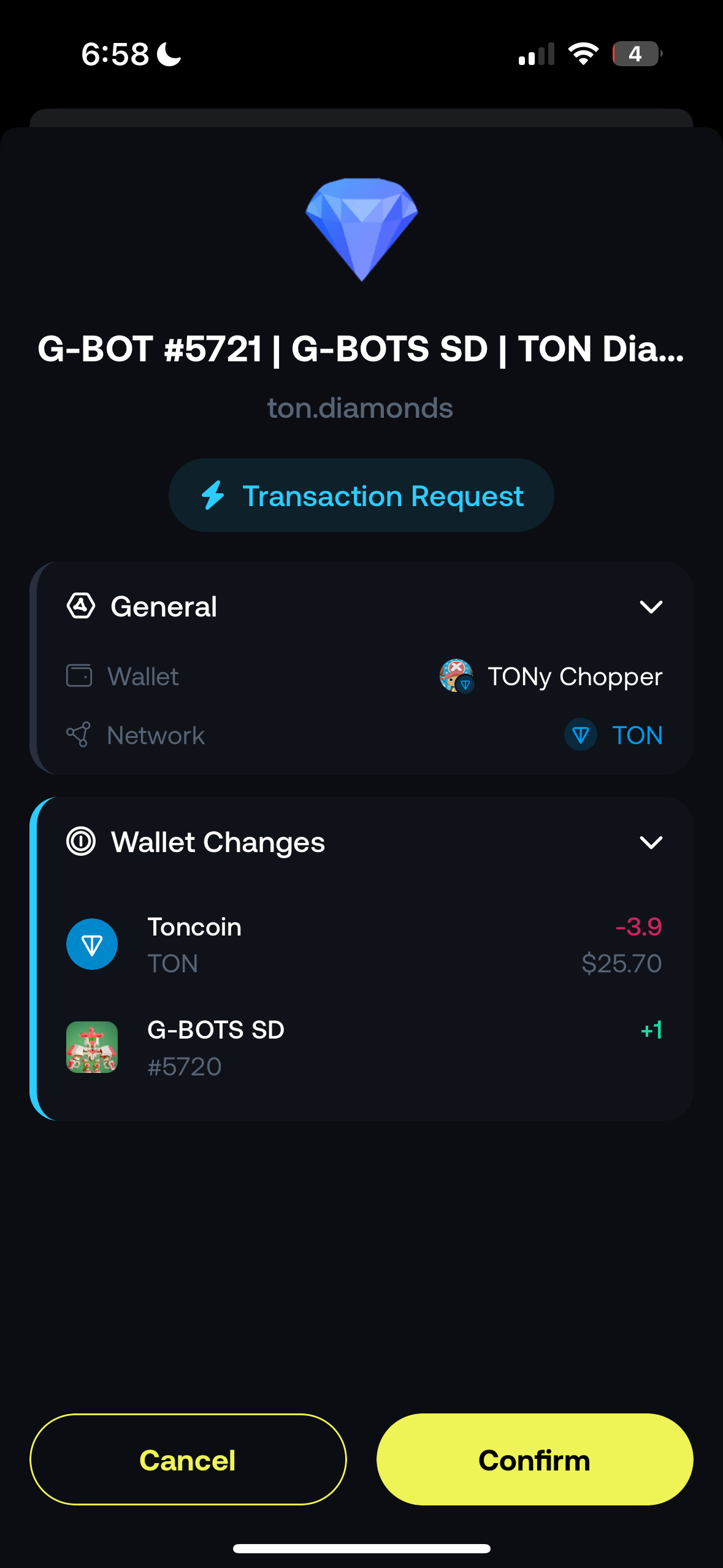
Fear no more, Nest is here to put you at ease! Nest automatically simulates any dApp transaction you are about to do and displays a detailed breakdown of what would happen to your token & NFT balances should you approve that transaction.
This has helped our users countless times in defending against wallet drainer and scam sites!
# Nest Odyssey (Points)
Information on the $NEST XP system
## What is the Nest Odyssey?
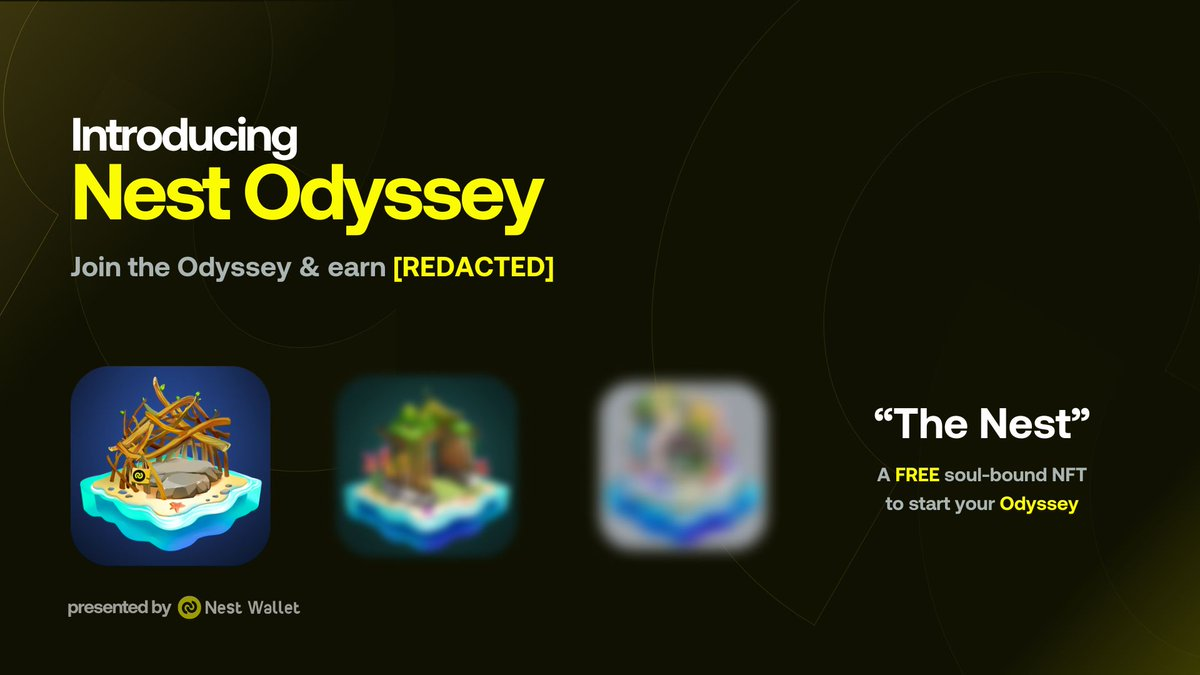
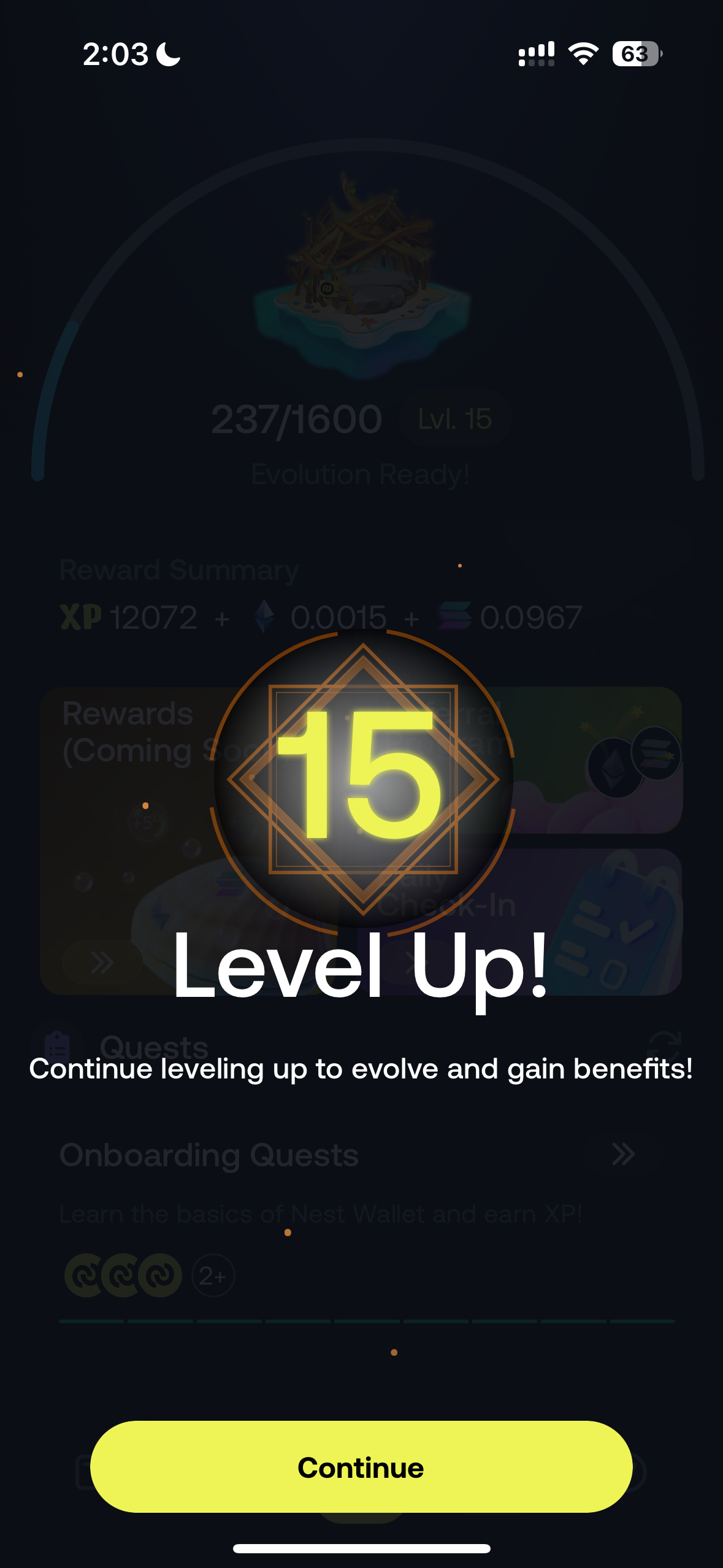
The Nest Odyssey is an in-app level up experience where the user can earn $NEST XP for interacting with the wallet in various ways, including trading, transacting, and completing quests!
## What is $NEST XP?
$NEST XP can help users get access to the following:
* Allocation of \[REDACTED]
* Exclusive merch, redeemable at certain levels
* In-app cosmetic upgrades and themes
* Exclusive access to new trading tools such as copytrading
* OTTO PFP NFT (Coming Soon)
## How to level up & earn $NEST XP?
There are a few things one can do to earn some $NEST XP
* In-app trading (Futures or Standard)
* Transacting using Nest
* Completing quests in the app
* Referring friends
* Attending IRL events and redeeming a promo code
* Claiming daily XP
# Referrals
Let's make a bag together!
## Nest believes in community.
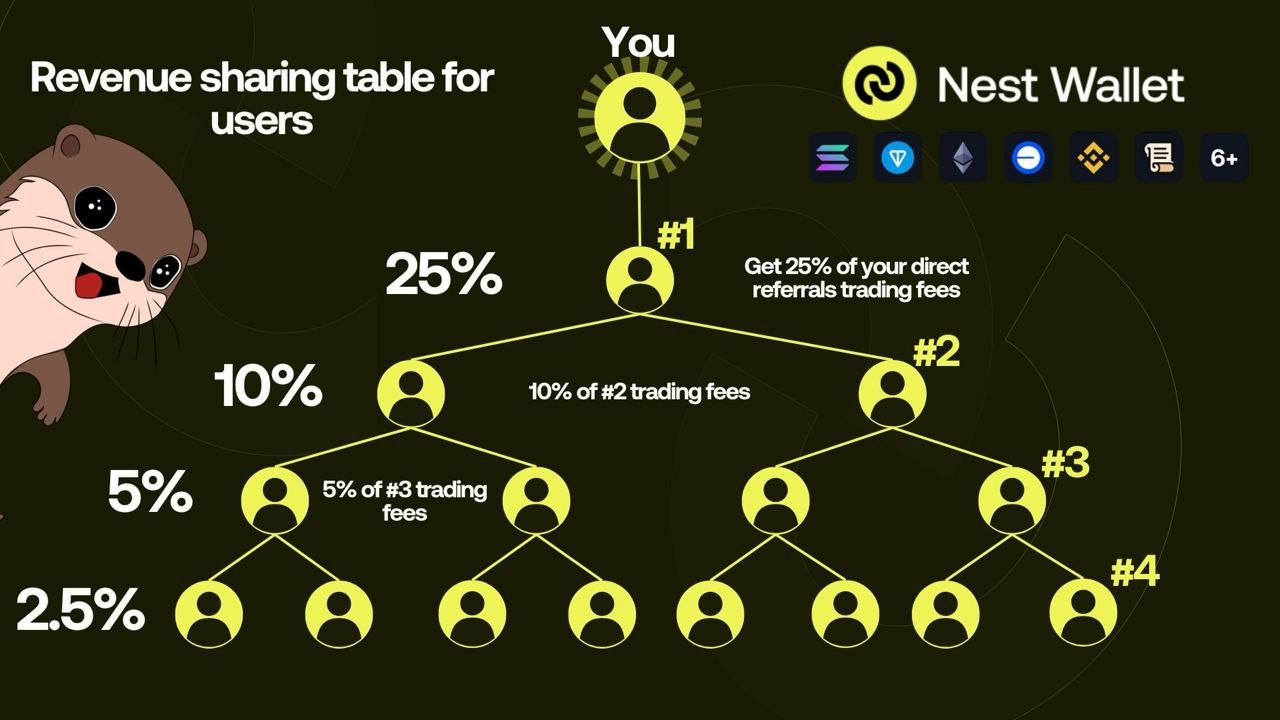
We’re excited to introduce Nest’s Referral Program, designed to reward you for helping grow our trading community. Earn passive income every time your referrals trade on Nest—the more they trade, the more you earn! 📈
Nest also rewards you with $NEST XP based on your referees trading activity.
## 💸 Revenue Share Breakdown
Nest's 4-Tier Referral System rewards you across multiple levels:
1️⃣ Level 1: Earn 25% commission
2️⃣ Level 2: Earn 10% commission
3️⃣ Level 3: Earn 5% commission
:four: Level 4: Earn 2.5% commission
# Getting started
A guide on getting started with Hyperliquid on Nest
## Trade futures on the go using Hyperliquid on Nest
To get started
* Simply switch from **Spot** to **Perp** mode fro the top as seen on banner image
* Create or import an existing Hyperliquid account
* Click Withdraw to go through the seamless cross-chain USDC deposit flow
* Get notifications on every time your orders trigger
# Opening a position
## Market Order
Navigate to the middle tab 🔭 and select the desired token

Click "Long" or "Short" to open the trading module and make sure Market is selected
.png?alt=media\&token=5e8ac542-147d-4a9f-9e20-47228ab953d7)
Set your Size & trade
.png?alt=media\&token=f22fa4cf-90ce-4b6d-8fdc-5d7815cc2a9c)
***
## Limit Order
Navigate to the middle tab 🔭 and select the desired token

Click "Long" or "Short" to open the trading module and make sure Limit is selected
.png?alt=media\&token=157b178c-43c8-4201-a74c-2f689a2fd0bc)
Set your Entry Price and Size to trade
.png?alt=media\&token=86ed393f-6fe3-4a06-97b8-e6c2773edf2c)
# Setting leverage for a token
Each token in your hyperliquid account has its own leverage amount. Changing the leverage for one token does not affect other token's leverage.
When setting an order click on the multiplier
.png?alt=media\&token=6d76ece4-1a90-4369-a816-eb410e58b88d)
Adjust to your desired leverage and click confirm

# Closing a position
## Follow these steps to market close an order.
Click Close on the desired position
.png?alt=media\&token=65710234-db24-4da8-992e-39401d9c729d)
Set the % you want to close and click Confirm

# Setting Take Profit/Stop Loss
Setting the Take Profit (TP) and Stop Loss (SL) allows you to automatically close positions at certain price levels.
## Setting TP/SL before opening position
Enable the Take Profit/Stop Loss toggle
.png?alt=media\&token=5113cac9-e02c-4cd8-b1c9-292b287b9c18)
Set your SL/TP price or gain %
.png?alt=media\&token=2f543ef6-0e90-462f-913a-d92194c766da)
## Setting TP/SL after opening position
Click on TP/SL on your position card
.png?alt=media\&token=bd02cd65-c896-473c-a0b7-03b568e1ccf2)
Configure the TP/SL trigger price and size and click Confirm

# Fees
Nest Futures fees
Nest takes a flat 0.05% fee on in-app futures trades. Signup with a referral code to pay 10% less in fees
# Discover Tokens
Nest allows you to find and trade tokens the moment they come out!
## Browse
1. Click on the middle Telescope Icon at the bottom of your screen
2. Look through the tokens and find the one you would like to trade
2. (optional) Use our advanced filters and sorting to narrow down your criteria by pressing the filter icon near the top right
## Find token by address or name
To find a token by address or name by clicking Paste or typing the desired text
# Market & Limit orders
## Market Order
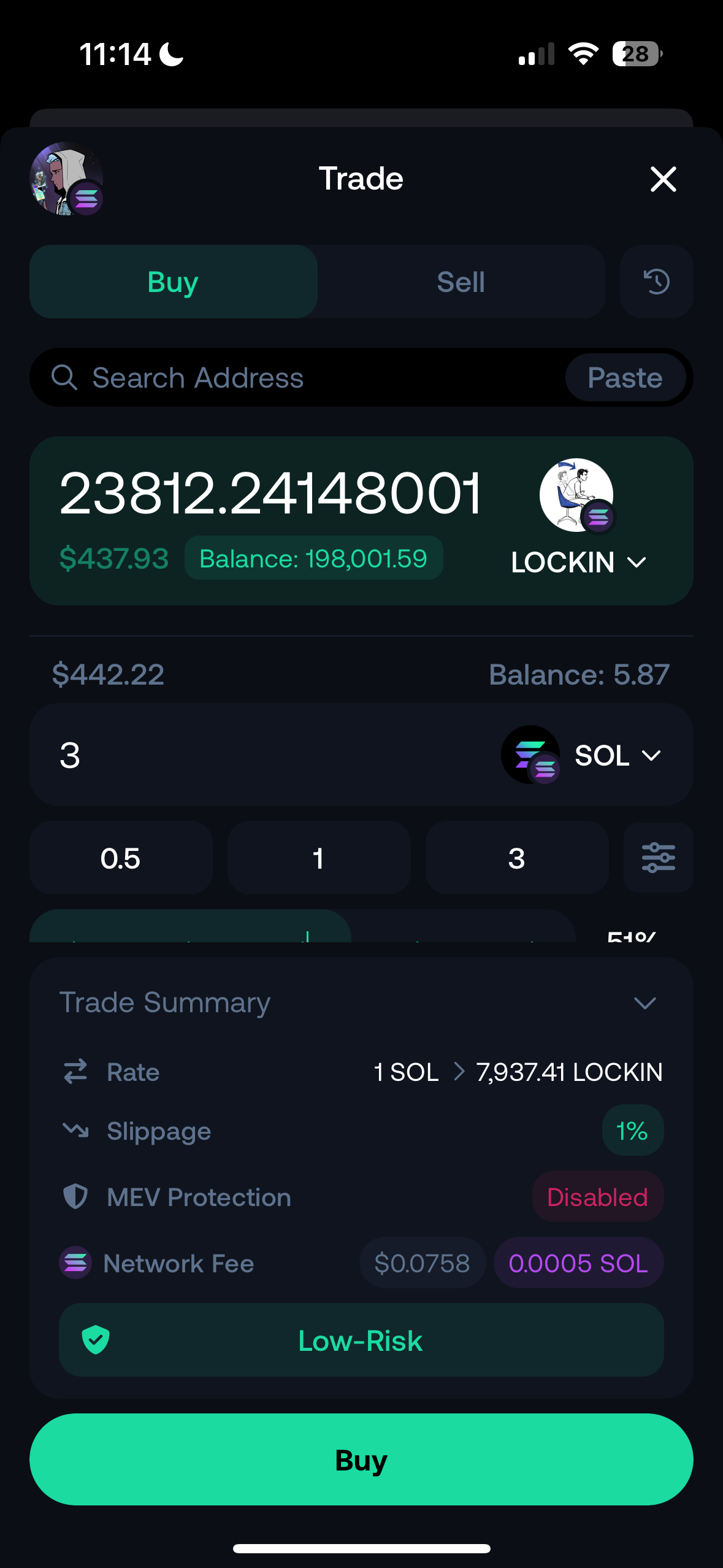
Click into your desired token

Click buy/sell and make sure Market is selected
.png?alt=media\&token=5e8ac542-147d-4a9f-9e20-47228ab953d7)
Set your size & trade
.png?alt=media\&token=2cf3789a-1810-4c96-ad1e-5bdaa3f581ab)
## Limit Order
Click into your desired token

Click buy/sell and make sure Limit is selected
.png?alt=media\&token=8e8ecabd-91a2-48b1-bd6b-466cb33a9317)
Set your Entry Price & Size
.png?alt=media\&token=d25782ec-447e-4c36-bf29-67c611095ffb)
# Track Devs and Snipers
Get Dev and Snipers holding percent in the Analysis tab of the token

Track when devs and Snipers Buy and Sell using the live candle indicators

SB - Sniper Buy\
SS - Sniper Sell\
DB - Dev Buy\
DS - Dev Sell\
\
Numbers represent multiple of the same action in the same candle
# Share PNL
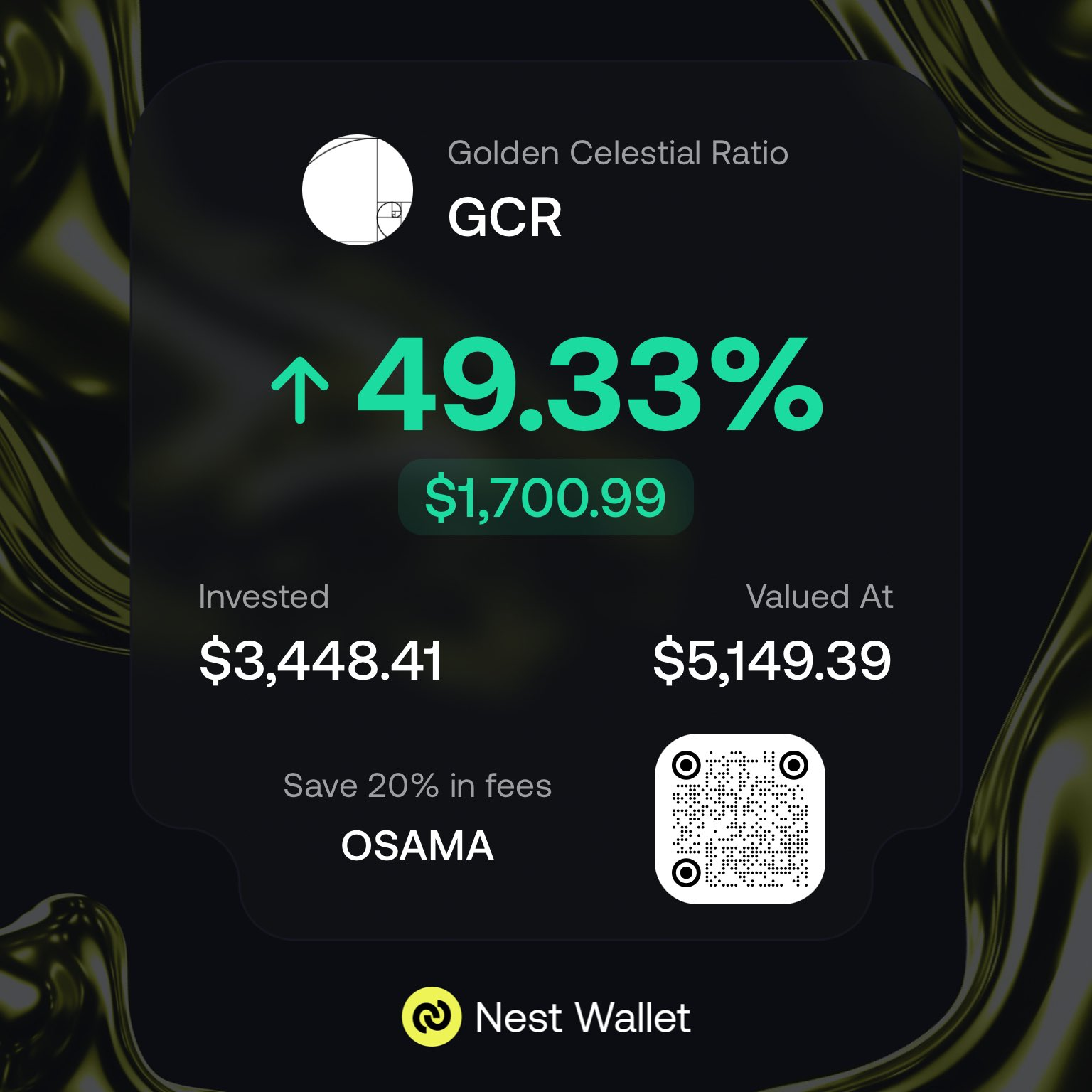
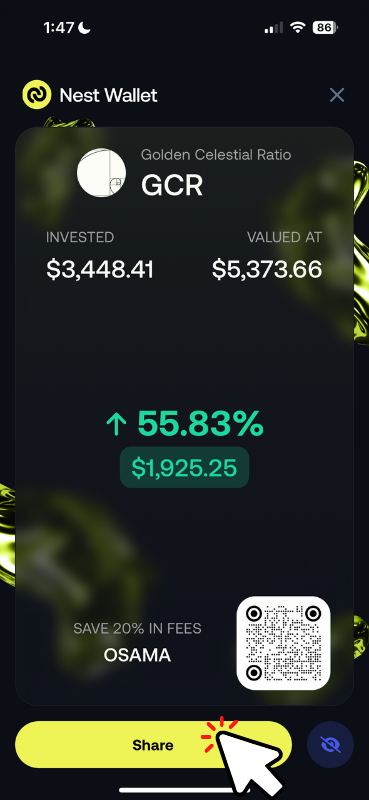
This guide will show you how to quickly generate sharable screenshots of your PNLs that include your referral code :wink:
You will earn fees from people who sign up using your referral code.
From the Home Screen click on the token you want to share
.png)
Under the Overview section click Share
.png)
Either screenshot this screen or click Share for a better view!
# MEV protection
A guide on what MEV attacks are and how to protect against them on Nest
## What is an MEV attack?
**MEV attacks** often target pending transactions in the **mempool**, a pool of unconfirmed transactions. Attackers monitor the mempool for opportunities, such as users buying or selling assets at favorable prices. They then strategically place their own transactions before and after the target transaction, creating a "sandwich" that can manipulate the price and profit the attacker at the expense of the user.
## What is MEV protection?
**MEV protection** can work by bypassing the mempool and submitting transactions directly to **block builders**. Block builders are entities that create blocks for inclusion in the blockchain. By submitting directly to a block builder, users can avoid the risk of their transactions being sandwiched by other transactions in the mempool.
## How to turn on MEV protection on Nest Wallet
### Ethereum
Good news, there is nothing you need to do. Nest Wallet uses [Flashbots](https://www.flashbots.net/) to automatically provide MEV protection on all Ethereum based trades done within the app, at no cost to the users.
### Solana
We have partnered with [Jito](https://www.jito.wtf/) to hide user's trades from potential MEV attackers.
To turn on MEV protection:
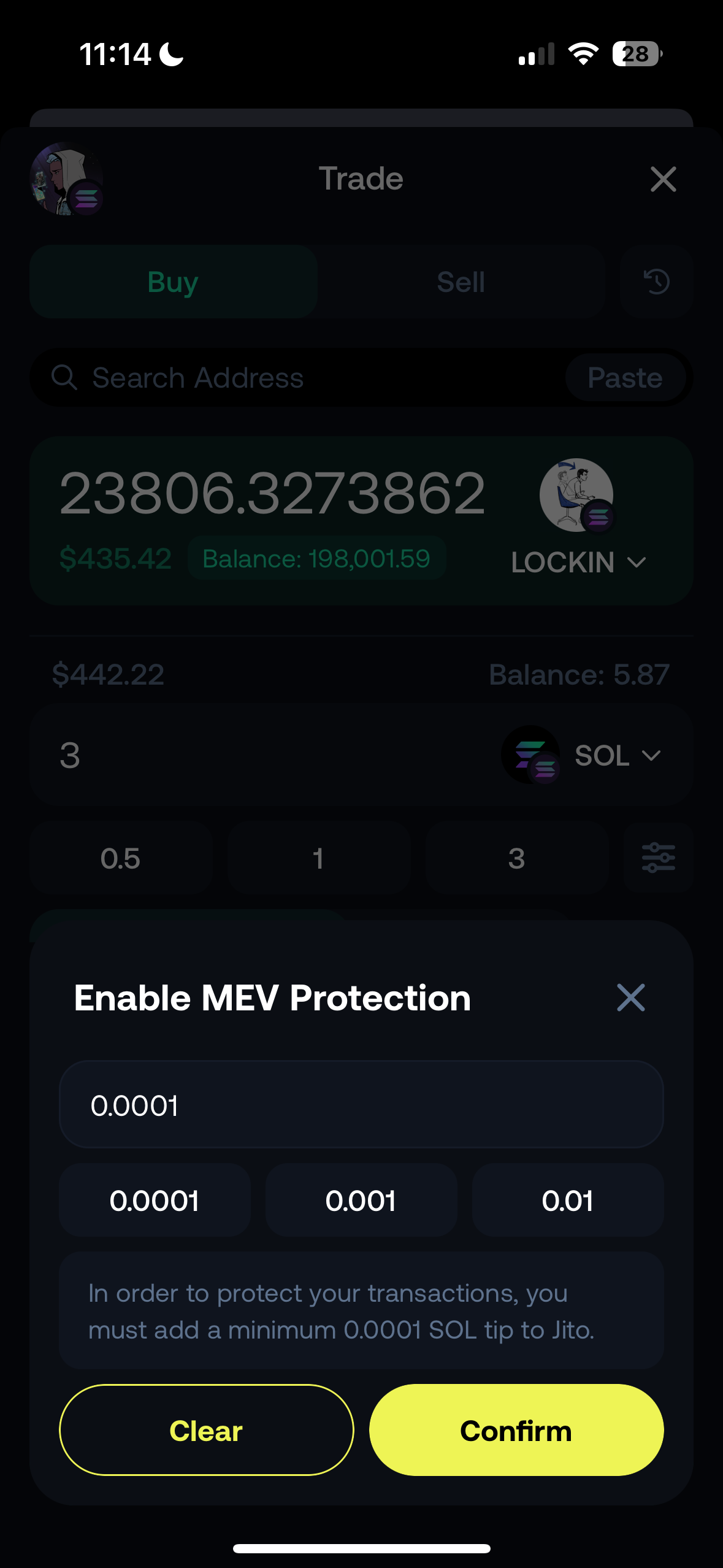
* Find a token you want to trade and set the amount you want to buy and sell
* Click on MEV Protection and set your Jito tip amount. The higher the tip the quicker the inclusion
* Click confirm and you're **all set!** Nest Wallet will remember your settings for all subsequent trades
# Extension integration
### Context
Nest Wallet has native integration with various charting platforms including DexScreener, Birdeye and more!
Via the integration Nest will automatically recognize what chart you are looking at and give you seamless way to trade the token with 1 click.
Note: Nest will remain open on the side panel and is able to dynamically switch tokens based on what chart you switch to! :nest\_with\_eggs:
### How to use?
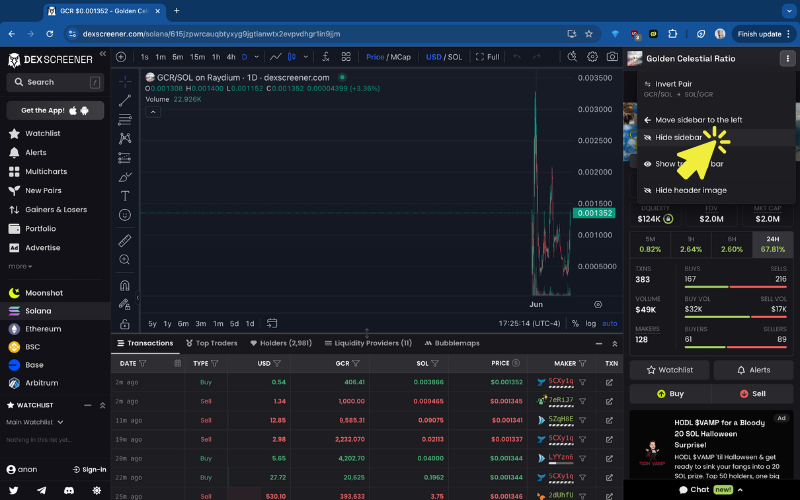
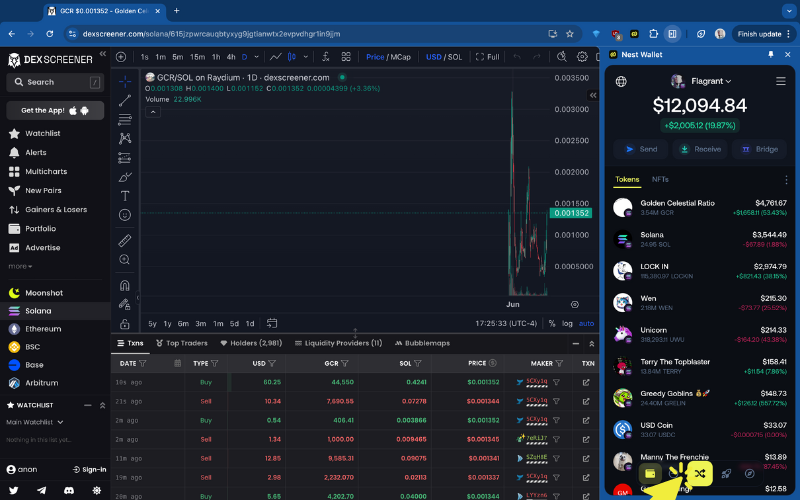
Open DexScreener and pick your favorite coin!

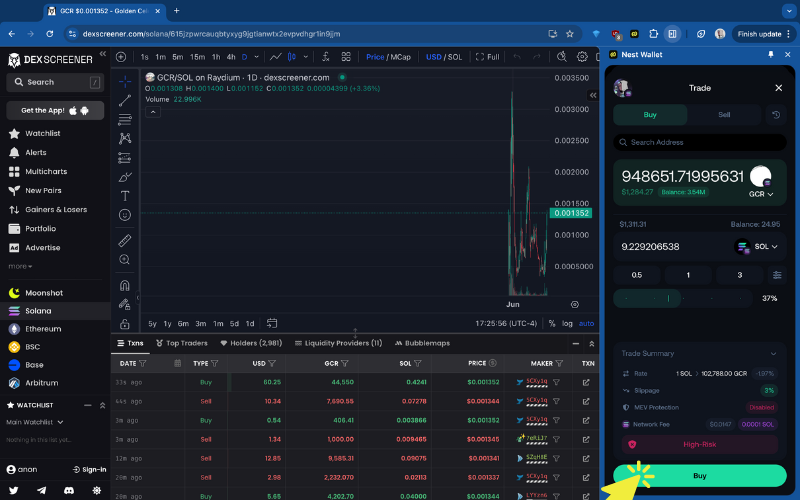
(Optional) Hide the DexScreener sidebarOpen Nest Wallet and navigate to Trading UITrade Away!
Nest Wallet will stay open in the side panel until you close it. Enabling you to seamlessly switch between charts on DexScreener & Nest will dynamically switch what token to trade based on the chart you are currently watching.
# Fees
Details on Nest Wallet fees.
Nest wallet takes a flat 1% fee on in-app swaps, however users get a 10% discount if the sign up using a referral code.
# Connect Wallet to dApps
Nest wallet is able to connect to any dApp on Solana, Ton, and any of our supported EVM chains!
Step 1: Go to the dApp and click Connect Wallet or Login (usually at top right corner).
If Nest Wallet is listed, click to connect.
If Nest Wallet is not listed, select MetaMask or Browser Wallet from the list and a window will pop up.
 
Step 2: Choose Use Nest Wallet. (If Nest Wallet is not avaible, choose "Metamask")

Step 3: Select the Wallet and Network and Confirm the connection.
Note: you can select any your wallets or Safe{wallets} that you have imported.

.png)
.png)


 Nest Wallet will stay open in the side panel until you close it. Enabling you to seamlessly switch between charts on DexScreener & Nest will dynamically switch what token to trade based on the chart you are currently watching.
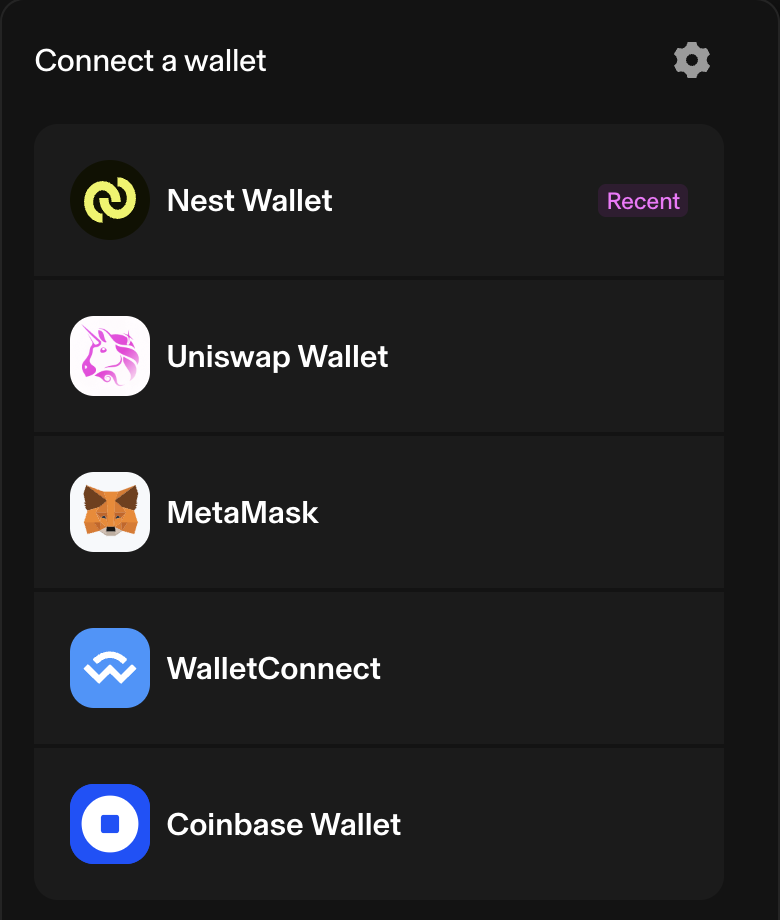 If Nest Wallet is not listed, select MetaMask or Browser Wallet from the list and a window will pop up.
 
If Nest Wallet is not listed, select MetaMask or Browser Wallet from the list and a window will pop up.
 